
Step 01
Choose a model
Start with Kling 2.6 Pro to use fewer credits. Choose Kling 3.0 Standard when you want higher-fidelity motion transfer.
Motion Control AI beginner guide
You only need two files: a picture of the character and a video of the movement. This guide explains every setting in plain English.
Open the generatorPrepare one file for appearance and one file for movement. The AI combines them.
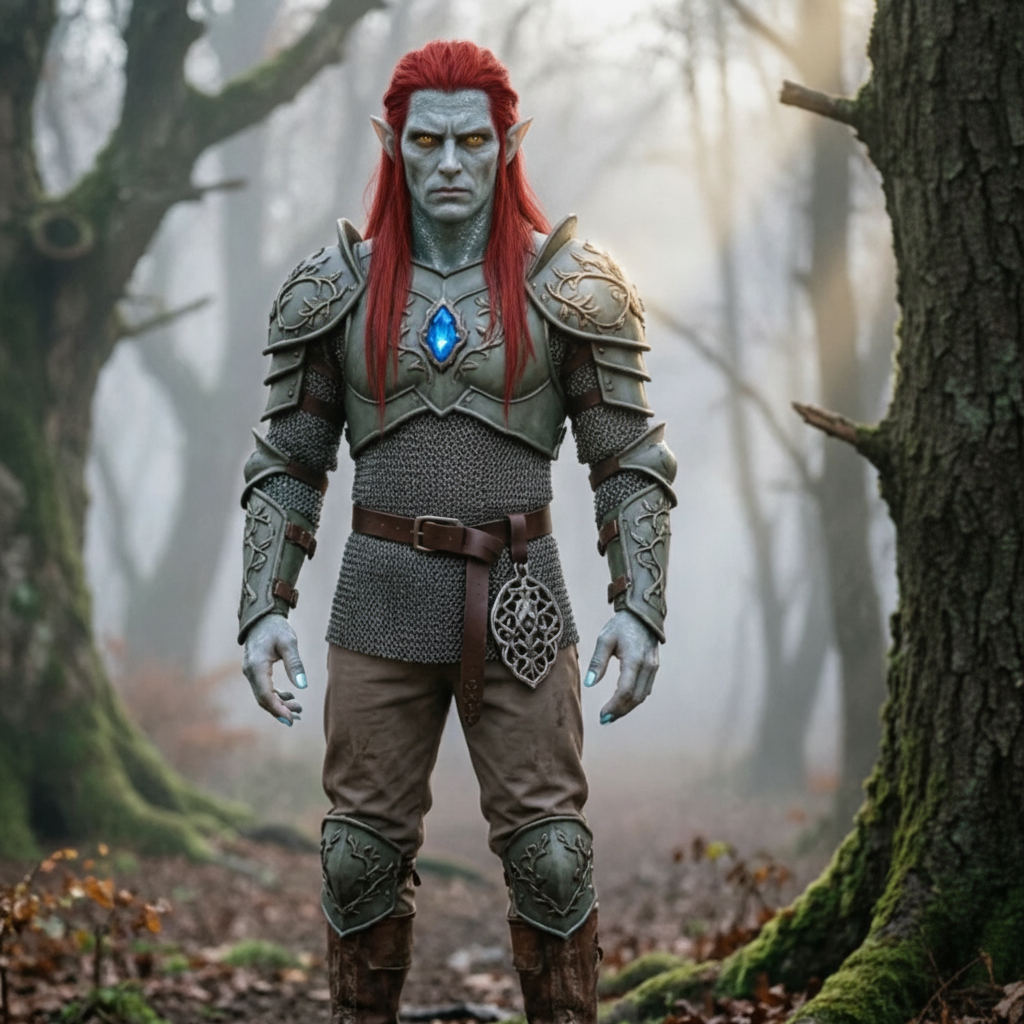
Use a bright, clear JPG or PNG. Show the head, shoulders, torso, and any body parts needed for the movement. Avoid crossed arms, cropped limbs, and objects covering the body.
Use a 3–30 second MP4 or MOV with one continuous action. Keep the moving person fully visible, well lit, and free from obstructions.
Step 01
Start with Kling 2.6 Pro to use fewer credits. Choose Kling 3.0 Standard when you want higher-fidelity motion transfer.
Step 02
Choose a clear JPG or PNG showing the person, illustration, avatar, or mascot you want to animate. Keep the body visible and unobstructed.
Step 03
Choose an MP4 or MOV showing the dance, gesture, walk, or action to copy. A short clip with one clearly visible person gives the most reliable result.
Step 04
Pick which framing to follow, decide whether to keep sound, add an optional style prompt, then review the credit cost and generate.
One character image plus one movement clip becomes a fully motion-controlled video.
Recommended starting point
Choose this for first attempts, prompt testing, and lower credit use. It costs 1.6 credits per detected video second.
For shots that need extra fidelity
Choose this for higher-fidelity motion transfer. It costs 1.8 credits per detected video second.
This setting tells the AI which camera angle and composition should guide the result. It does not change where the character comes from.
Use this default when you want the character to face and move like the person in the motion clip. It supports clips up to 30 seconds.
Use this when the original image composition matters most. With Kling 3.0 Standard, the movement video must be 10 seconds or shorter.
Describe the scene, lighting, atmosphere, and style. Do not repeat the dance or action—the video already provides it.
Good prompt
Cinematic lighting, golden hour, urban street background, shallow depth of field, subtle film grain.
Negative prompt
Blurry, distorted body, extra limbs, watermark, low quality, flickering.
Leave “Keep Original Sound” on to copy the movement video's audio. Turn it off for silent output.
Use JPG/PNG for the character and MP4/MOV for the motion. Keep each file under 10 MB and at least 300 px on both sides.
Use a clip where the moving person stays fully visible. Avoid cuts, crowds, objects covering the body, and very dark footage.
Choose a character image that shows a similar body area and angle to the person in the motion video. Shorten complex dance clips to 3–10 seconds.
Choose “Match the movement video” for the safest result. Use “Keep the character image” only when preserving the image composition matters more.
Turn on “Keep Original Sound” before generating. This copies the audio from your uploaded movement video.
Keep the page open. Motion Control can take several minutes, and longer clips usually need more processing time.
Start with one clear image and one short movement clip. You can improve the style after the first result.
Create a Motion Control Video